
What is Taking Up Storage on My iPhone? Complete Guide to Free Up Space
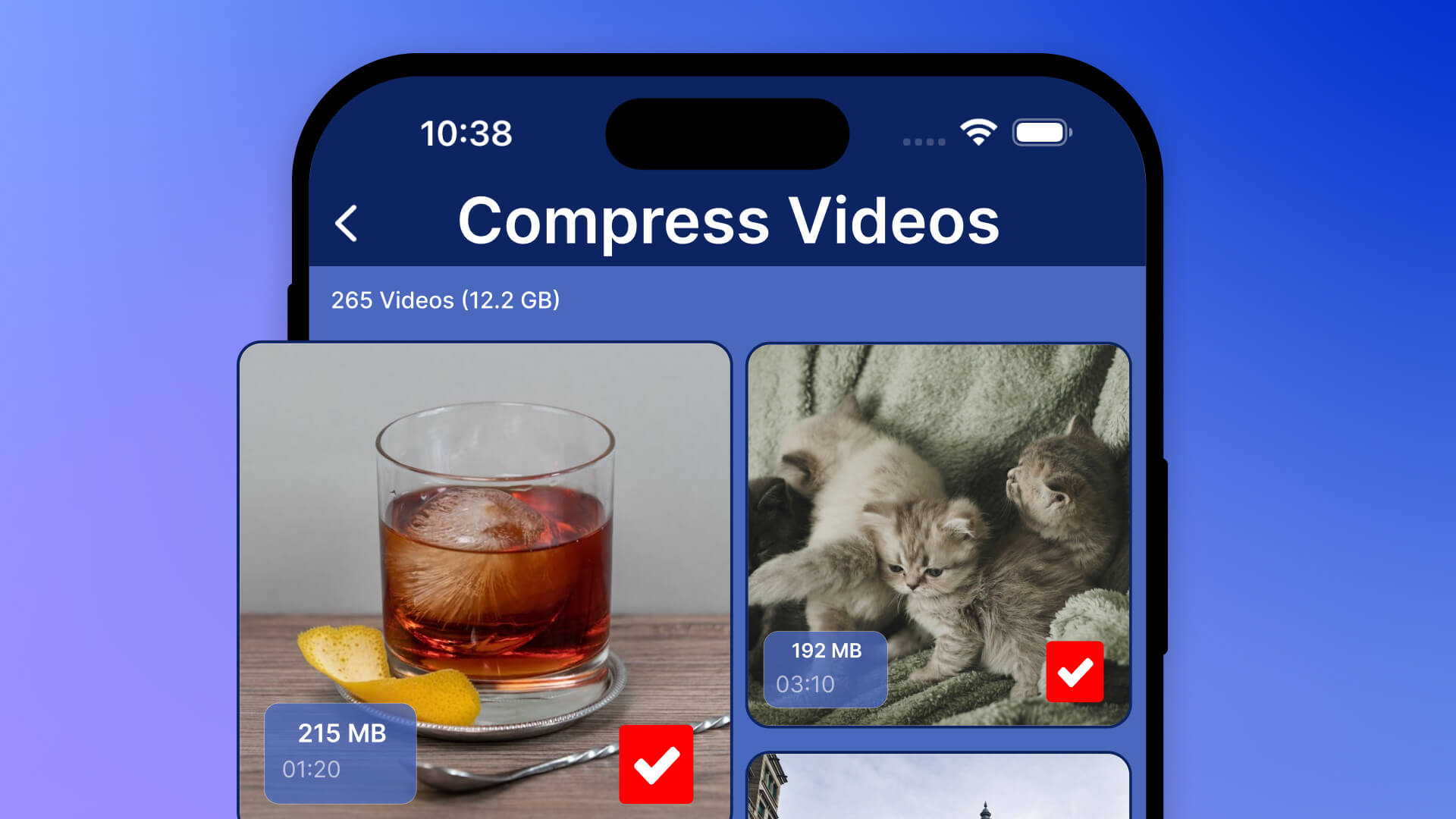
Getting the dreaded "iPhone Storage Full" message? You're not alone. Many iPhone users struggle with running out of storage space, even on models with 128GB or 256GB. Let's discover exactly what's consuming your storage and how to reclaim it quickly.
How to check your iPhone storage
First, let's see what's actually using your storage:
- Open Settings
- Tap General
- Tap iPhone Storage
- Wait for the storage breakdown to load
You'll see a color-coded bar showing how your storage is distributed across different categories. Now let's break down each category and how to clean it up.
Top storage consumers on iPhone
1. Photos and videos (usually 30-60% of storage)
Why it takes up so much space:
- Duplicate photos from burst mode and multiple takes
- Similar photos of the same scene (often 5-10 nearly identical shots)
- Large 4K videos that can be 1-2GB each
- Screenshots you forgot to delete
- Photos saved multiple times from messages and social media
How to free up space:
This is where you can recover the most storage. Instead of manually scrolling through thousands of photos, use Cleana to automatically find and delete duplicate photos and similar pictures. The AI analyzes each photo's quality and helps you keep only the best version.
- Delete duplicate photos: typically frees 5-15GB
- Remove similar low-quality shots: another 3-10GB
- Clean up old screenshots: 1-3GB
- Delete large unnecessary videos: 5-20GB
Most users recover 15-30GB from photos alone using Cleana's AI-powered cleanup.
2. Apps and app data (20-30% of storage)
Common culprits:
- Social media apps with cached content (Instagram, TikTok, Facebook)
- Streaming apps with downloaded content (Netflix, Spotify)
- Games with large file sizes
- Messaging apps with accumulated media
How to clean:
- Delete apps you rarely use
- Offload unused apps (Settings > General > iPhone Storage)
- Clear app caches by reinstalling heavy apps
- Delete downloaded Netflix/Spotify content you've already watched
3. Messages (5-15% of storage)
Why Messages gets bloated:
- Photos and videos sent in conversations
- Animated GIFs and stickers
- Voice messages
- Years of conversation history
How to clean:
- Delete conversations with lots of media
- Set messages to auto-delete after 1 year (Settings > Messages > Keep Messages)
- Manually delete large attachments in Settings > General > iPhone Storage > Messages
4. System and Other storage (10-20% of storage)
This includes iOS system files, caches, logs, and Siri voices. This category can grow unexpectedly large due to:
- System caches and temporary files
- iOS update files
- App caches not properly cleared
How to reduce:
- Restart your iPhone to clear temporary caches
- Delete old iOS update files in Settings > General > iPhone Storage
- As a last resort, backup and restore your iPhone
5. Safari and browser data (1-3% of storage)
Safari caches websites, downloads, and browsing history.
How to clean:
- Clear Safari cache: Settings > Safari > Clear History and Website Data
- Delete Safari downloads in the Files app
The fastest way to free up iPhone storage
Based on analyzing thousands of iPhones, here's the priority order to reclaim the most storage:
- Clean photos first (15-30GB potential): Use Cleana to delete duplicates, similar photos, and unnecessary files
- Delete large videos (5-20GB potential): Cleana also finds your largest videos so you can easily offload them
- Remove unused apps (2-10GB potential): Delete or offload apps you haven't used in months
- Clean Messages (2-8GB potential): Delete old conversations with lots of media
- Clear browser cache (500MB-2GB potential): Clear Safari data
Why duplicate photos are the biggest storage waster
Here's a surprising fact: The average iPhone user has 300-800 duplicate or near-duplicate photos they don't need. These accumulate from:
- Taking 5-10 shots of the same scene to get the perfect one
- Burst mode creating 20-30 identical photos in seconds
- Screenshots taken and forgotten
- Photos synced multiple times from iCloud or other devices
Each duplicate wastes 2-5MB of storage. Multiply that by hundreds of duplicates, and you're looking at 10-20GB of wasted space.
How Cleana helps you identify storage hogs instantly
Instead of manually hunting through your phone, Cleana does the hard work for you:
- Duplicate photo scanner: Finds exact copies in seconds
- Similar photo detector: Groups nearly identical shots and shows you which is best quality
- Large video finder: Lists all videos by size so you can delete the biggest ones first
- Screenshot organizer: Collects all screenshots in one place for easy cleanup
- Contact cleaner: Merges duplicate contacts and removes incomplete entries
Everything works 100% offline on your device, so your photos never leave your iPhone.
How much storage do you actually need?
After a thorough cleanup with Cleana, here's what you should aim for:
- Keep 15-20% free: This ensures smooth performance
- Monthly cleanups: Run Cleana once a month to catch new duplicates
- Delete as you go: Review burst photos immediately after taking them
Start freeing up storage now
Don't wait until your iPhone storage is completely full. Start with your photos since that's where you'll recover the most space the fastest. Download Cleana and free up 15-30GB in just minutes. Your iPhone will thank you.