
How to Find and Delete Similar Photos on iPhone (Keep the Best One)
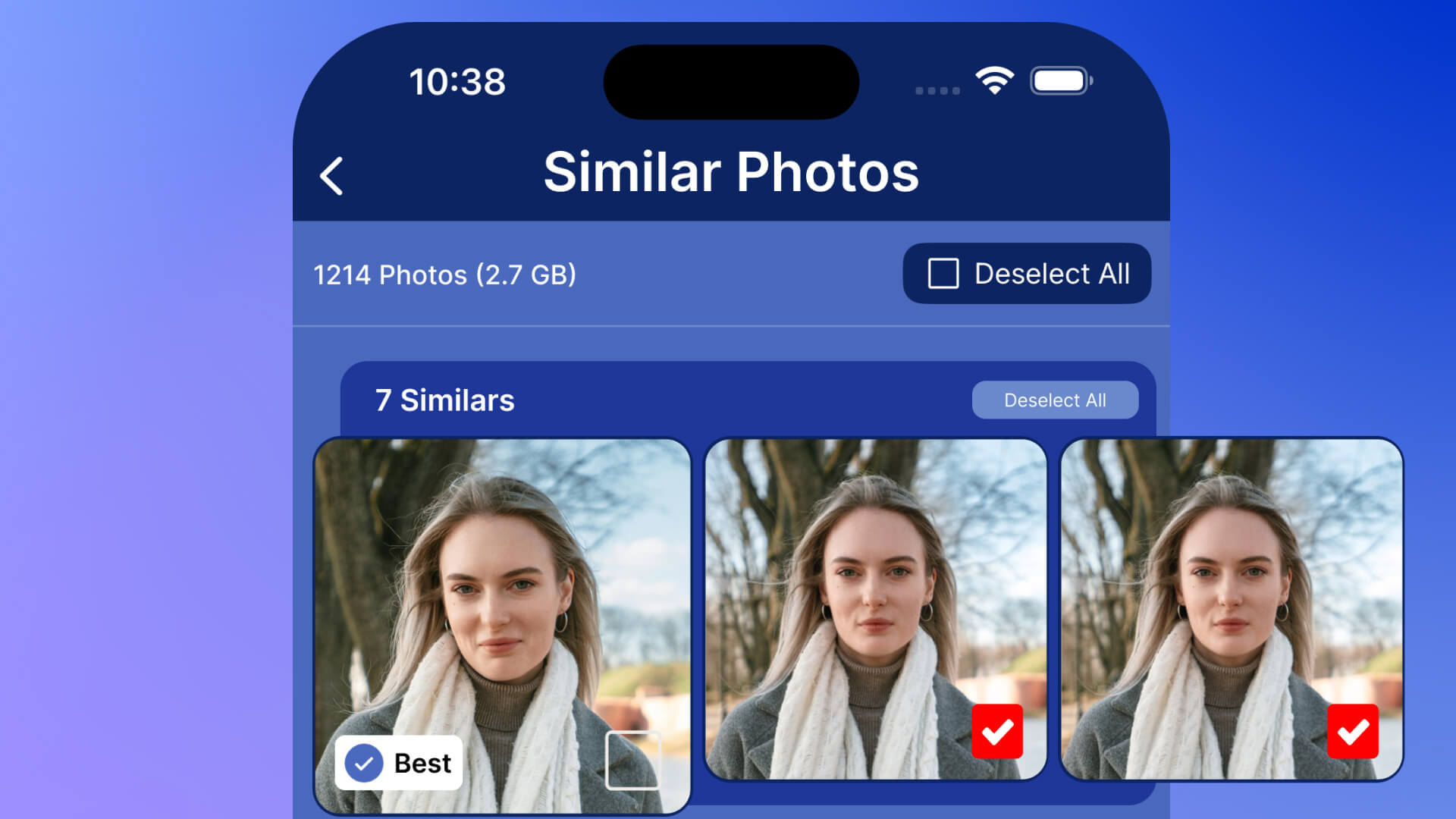
We all do it. Take 5, 10, or even 20 shots of the same scene trying to get that perfect photo. But those similar photos pile up fast, consuming gigabytes of storage. Unlike exact duplicates, similar photos are harder to find manually because they're not identical – just very close. Here's how to find and delete similar photos on your iPhone while keeping only the best version.
What are similar photos (and why they're a problem)
Similar photos are multiple shots of the same subject that look nearly identical but have small differences:
- Different poses or expressions in group photos
- Slight camera angle variations
- Different focus points or exposure levels
- Same scene with minor timing differences
- Burst mode shots that look almost the same
The storage impact: If you have 10 similar photos at 3MB each, that's 27MB wasted (since you only need to keep one). Multiply this by hundreds of photo groups, and you're looking at 10-20GB of unnecessary storage consumption.
Why iPhone's built-in tools can't find similar photos
iOS 16+ includes a "Duplicates" album, but it has major limitations:
- Only finds exact duplicates: Misses similar photos completely
- No quality comparison: Doesn't tell you which version is sharper or better composed
- Manual review required: You must examine each group yourself
- Slow process: Reviewing thousands of photos manually takes hours
To effectively find and delete similar photos, you need AI-powered analysis that can detect visual similarities and determine photo quality.
How AI detects similar photos on iPhone
Modern AI photo cleaners like Cleana use advanced computer vision to analyze your photos:
1. Visual similarity detection
AI scans every photo and creates a unique "fingerprint" based on:
- Overall composition and framing
- Subject positioning and scene layout
- Color distribution and lighting
- Pattern recognition and shapes
Photos with similar fingerprints are grouped together, even if they're not pixel-perfect matches.
2. Quality analysis
For each group of similar photos, AI evaluates quality factors:
- Sharpness: Detects blur and out-of-focus areas
- Exposure: Identifies overexposed or underexposed images
- Face quality: Analyzes facial expressions, open eyes, and smiles
- Composition: Evaluates framing and rule-of-thirds adherence
- Technical quality: Checks for noise, artifacts, and proper focus
The AI then ranks photos in each group, highlighting the best quality version to keep.
3. Smart grouping
AI groups similar photos intelligently:
- Time-based clustering (photos taken within seconds of each other)
- Location-based grouping (photos from the same place)
- Visual similarity scoring (how alike the photos look)
Step-by-step guide to finding similar photos with Cleana
Step 1: Download and open Cleana
Download Cleana from the App Store and grant it photo library access. Don't worry, everything works offline on your device.
Step 2: Start the similar photo scan
Tap "Similar Photos" on the home screen. Cleana will scan your entire photo library in seconds, analyzing thousands of photos to find similar groups.
Step 3: Review AI-grouped similar photos
Cleana displays groups of similar photos with the best quality photo highlighted. You'll see:
- All similar photos in one group displayed together
- A checkmark on the AI-recommended best photo
- Quality indicators showing why it's the best choice
- How much storage each group consumes
Step 4: Swipe to decide what to keep
Review each group using simple swipe gestures:
- Swipe right: Keep this photo
- Swipe left: Delete this photo
- Tap: View full resolution before deciding
The AI recommendation is usually accurate, but you always have final control.
Step 5: Confirm and delete
Once you've reviewed all groups, tap "Clean" to delete the selected photos. They're moved to your Recently Deleted album for 30 days (giving you a safety net), then permanently removed.
Pro tips for managing similar photos
Delete as you go
After taking multiple shots of a scene, immediately review and delete the bad ones while they're fresh in your mind. This prevents accumulation.
Use burst mode wisely
Burst mode is great for action shots, but review and delete immediately after. Don't let 30-photo bursts sit in your library.
Monthly cleanups
Run Cleana's similar photo scanner once a month. This prevents buildup and only takes a few minutes.
Trust the AI (mostly)
In our testing, Cleana's AI correctly identified the best photo 95% of the time. If you disagree with a recommendation, you can always override it, but the AI is usually right.
Check "favorites" first
If you've marked some photos as favorites, Cleana will prioritize keeping those versions.
How much storage can you recover?
Real results from Cleana users:
- Light photographers (1,000-3,000 photos): 2-5GB recovered from similar photos
- Average photographers (3,000-10,000 photos): 5-12GB recovered
- Heavy photographers (10,000+ photos): 15-25GB recovered
Combined with duplicate deletion and video cleanup, most users free up 20-35GB total on their first Cleana scan.
Common mistakes when deleting similar photos
Mistake 1: Deleting too aggressively without review
Solution: Always review AI suggestions. While mostly accurate, you might have personal preferences (like a specific facial expression) that AI doesn't consider.
Mistake 2: Keeping all "just in case"
Solution: If you haven't looked at a photo group in 6 months, you probably don't need 8 versions. Keep the best one and let go.
Mistake 3: Not checking Recently Deleted
Solution: Deleted photos stay in Recently Deleted for 30 days. Review this album before it auto-empties to catch any accidental deletions.
Mistake 4: Ignoring Burst photos
Solution: Burst mode creates the most similar photos. Make these a priority when cleaning up.
Similar photos vs. duplicate photos: What's the difference?
| Feature | Duplicate Photos | Similar Photos |
|---|---|---|
| Definition | Pixel-perfect identical copies | Nearly identical but not exact |
| How they occur | Import errors, syncing, backups | Multiple takes, burst mode |
| iOS can find? | Yes (iOS 16+) | No |
| Need AI? | No (simple hash comparison) | Yes (visual analysis required) |
| Quality differences? | No (identical quality) | Yes (often big differences) |
Why Cleana's similar photo finder is the best
- Most accurate AI: 95% accuracy in identifying the best photo
- Fast scanning: Processes 10,000 photos in under 30 seconds
- Smart grouping: Groups by time, location, and visual similarity
- Quality explanations: Shows why each photo is ranked as it is
- 100% offline: Your photos never leave your iPhone
- Undo safety: 30-day Recently Deleted period
Start finding similar photos now
Stop letting near-duplicate photos waste 10-20GB of valuable iPhone storage. With Cleana's AI-powered similar photo finder, you can identify and delete low-quality versions in minutes while keeping only your best shots.
Download Cleana and discover how many similar photos you have hiding in your library. Most users are shocked by how much space they recover.